
All fields other than Special Leave, Leave Code and Leave Name can be changed before submission.
How to Configure Leave Types?
Why should I use this form?
This form facilitates the configuration of leave types in an organization. There can be more than one Leave Type for the selected configuration period.
A Leave type can be configured unit wise/Location wise/Grade wise/employee status wise etc.. Multi selection is possible for each of these columns. Details such as leave type applicable to, min and max days to be applied etc., are configured here. Also, it allows the facilitator to indicate whether negative balance is allowed, half day is allowed, past days are allowed, intervening holidays/weekly offs to be included etc..
|
All fields other than Special Leave, Leave Code and Leave Name can be changed before submission. |
What are the Pre-requisites?
· Location and Grade Master should be created.
· OU should be created
· Status of the employee
· ESI and Non ESI
· Contract Type
Make sure all these parameters are available before we proceed.
Who can access this form?
This form shall be visible to all employees to whom the visibility is given in Product Setup ® Module Role Mapping/Module Administration.
How to navigate to this form?
Point to Admin menu, select Leave Configuration under Leave.
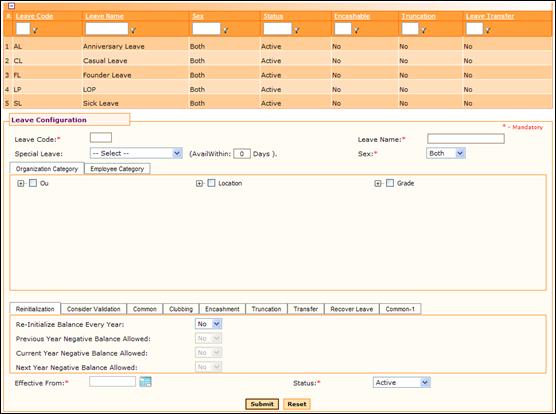
List of existing leave types are shown in the grid. If no leave type is available, then this grid will be empty.
The field guidelines are as follows.
Field |
Description |
Leave code |
Enter unique Leave code for the leave type. Leave code will be the short form for the Leave Name. Eg: Sick Leave will be shortened as SL. Note: It is not possible to modify the name. It accepts alphabets and numeric values (No special characters). The width of this field is limited to 2. |
Leave Name |
Enter Leave Name for the leave type. This will be the name of the Leave type – the original longer version. Note: It accepts alpha numeric & special character. The width of this field is limited to 64. |
Special Leave |
Select the Special Leave to define Leave type for Birthday, Wedding, and Compensatory Off, DOJ Anniversary Leave, Star Leave, Founders Day Leave, if required. · The Compensatory Off type allows the employees to avail Compensatory Leave when they work on a weekly off/holiday. Note: The ‘Avail within’ option facilitates the number of days within which, the compensatory leave should be availed, else it will lapse. · DOJ Anniversary Leave – this leave type allows the employees to avail one day leave on the date of joining anniversary of the employee. For example, if date of joining is on 4th Jan 2007, this leave can be taken on 4th Jan 2008, 4th Jan 2009 and so on. For more information on options for setting this leave, please refer “Anniversary Leave Configuration” section. · Founders Day Leave – This leave type can be availed by employees who have joined prior to the cut off date as set in the ‘Leave Additional Configuration’ form. For more information on options for setting this leave, please refer “Anniversary Leave Configuration” section. · Star Leave - All employees who have completed specified number of months (as set in the ‘Leave Additional Configuration’ form) in the organization are eligible for availing this type of leave. For more information on options for setting this leave, please refer “Anniversary Leave Configuration” section. |
Sex |
Select the gender of the employee(s) to whom the Leave is applicable. Note: Select Both to allow all the (male/female) employees to request or cancel the leave, irrespective of the gender. |
OU, Location, Grade, and Employee Status |
Select the OU, Location, Grade, and Employee Status to which the leave will be applicable. Enable the parent check box to select all the listed OUs/Locations/Grades /Employee Status/ESI/Non-ESI/Contract type. |