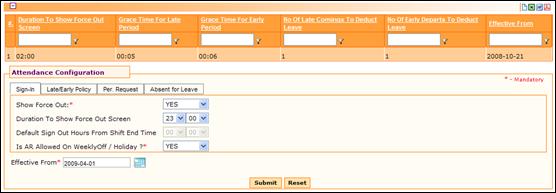
Attendance Configuration
Why should I use this form?
Use this form to create and maintain attendance configurations in the organization.
The Attendance sign-in and sign-out is based on the Attendance Configuration. The Attendance Configuration is common to all employees of the organization.
What are the Pre-requisites?
· Leave should be defined if there is any deduction to be made for late comings/ early departs.
· At least one leave should be applicable to all employees so that the late comings/ early departs can be considered for all employees.
Who can access this form?
This form shall be visible to all employees to whom the visibility is given in Product Setup ® Module Role Mapping/Module Administration.
How to navigate to this form?
Point to HR Task menu, select Attendance Configuration under Attendance.
The field guidelines are as follows:
Field Name |
Description |
Sign in Tab |
|
Show Force-out |
Select whether the Attendance Force-out screen should be shown or not. |
Duration to show Force out screen |
Select the duration to show the Attendance Force-out screen, after the shift end time. Note: This option will be enabled only if the Show Force-Out option is selected as ‘Yes’. |
Default Sign-Out Hours From Shift End Time |
Select the default Sign-out time. This means that if the employee has not singed-out on any day, system will automatically sign-out for that employee upon reaching the specified time. Note: This option will be enabled only if the Show Force-Out option is selected as ‘No’. |
Is AR Allowed on Weekly-off/ Holiday |
Select if Attendance Regularisations can be done on a weekly-off or holiday. If this option is selected as ‘Yes’ then employees will be allowed to raise Attendance Regularisations on weekly-offs or holidays. If this option is selected as ‘No’, then the employees are not allowed to raise Attendance Regularisations on weekly-offs or holidays. |
Effective From |
Select a date from when the attendance configuration will be in effect. When this date is reached this configuration will take effect. Note: If there are multiple configurations with different effective dates, the scheduler ‘Attendance Configuration’ takes care of activating the configuration as per the effective date. |
Click on Late/Early Policy Tab to configure the Late coming/Early departing parameters.
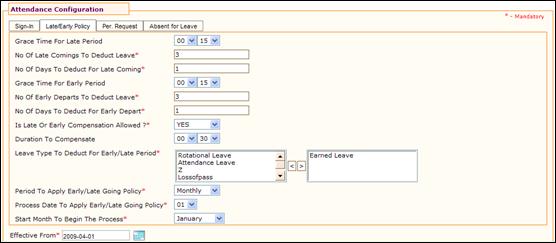
Late/Early Policy tab |
|
Grace Time For Late Period |
Select Duration for Late Period. This is the grace period given for the employees for signing-in. If the employee signs-in beyond this time, then it will be considered as Late. For example, say the shift time starts at 9 AM, and the Duration for Late period is given as 00:15 minutes. This means that employees signing beyond 9.15 AM will be considered as late comers. |
No. of late comings to deduct leave |
Enter the number of late comings to be considered for leave deduction. For example, it can be set as 3 which means, if an employee comes late for three days, then specified number of leave will be deducted. |
No. of days to deduct for late coming |
Enter the number of days to be deducted as leave for the late coming. |
Grace Time for Early period |
Select Duration for Early Period. This is the grace period given for the employees for signing-out. If the employee signs-out before this time, then it will be considered as Early Depart. For example, say the shift time ends at 6 PM, and the Duration for Early period is given as 00:15 minutes. This means that employees signing-out before 5.45 PM will be considered as early departs. |
No. of early departs to deduct leave |
Enter the number of early departs to be considered for leave deduction. For example, it can be set as 3 which means, if an employee departs early for three days, then the specified number of leave will be deducted. |
No. of days to deduct for early depart |
Enter the number of days to be deducted as leave for the early departing. |
Is Late or Early Compensation allowed? |
Select if compensatory working is allowed for late coming or early departing. |
Duration to compensate |
Select the duration to compensate. Note: This option will be available only if the above option (Late or Early Compensation allowed) is selected as ‘yes’ |
Leave type to deduct for Early /Late Period |
Select the Leave type to be deducted for late coming/early depart and click ‘>’. Note: Leave deductions cannot be done if leave type is not configured. The leave types selected will be in the order of preference. If the selected leave type is not applicable for an employee then system will look for next leave type. Similarly, if leave balance for the selected leave type is not available and if negative balance is not allowed for that leave type then system will proceed with the next leave type. If no leave meets the requirements it will select leave for last leave type, even if the configuration does not allow negatives. |
Period to apply Early/Late going policy |
Select the frequency in which the late coming/early going policy to be applied. |
Process Date to apply Early/Late Going Policy |
Select the day on which the attendance scheduler process has to run to deduct leave for late coming/early going.
|
Start month to begin the process |
Select the month from when the attendance scheduler process has to be started. |
Click on Per-Request Tab to configure the Permission request details.
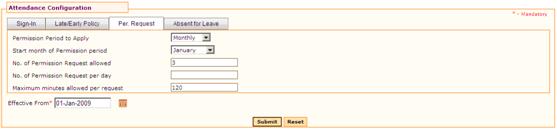
Per Request tab |
|
Permission period to apply |
Select the frequency in which the permission request is considered. Available options are Monthly, Quarterly, Half Yearly and Yearly. |
Start month of Permission period |
Select the month from when the permission period starts. |
No. of permission request |
Enter the number of permission requests that are allowed in the selected duration. For example, if the Permission Period to Apply is selected as ‘Quarterly’, and the Start month is selected as ‘February’. If the Number of permission requests is given as 5, then it means that only 5 permission requests are allowed in a quarter, which in this case is from February to April. |
No. of permission request per day |
Enter the number of permission requests that are allowed in a particular day. |
Maximum minutes allowed per request |
This is to specify the maximum minutes allowed per permission request. For example, to specify only 2 hours is allowed in a permission request, then enter as 120 minutes. |
Click on Absent for Leave Tab to configure deducting leave in case of absent.
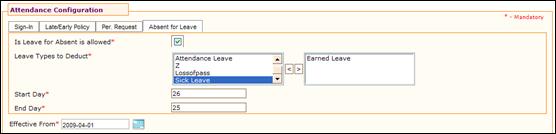
Absent for Leave |
|
Is Leave for Absent allowed |
Select if leave to be deducted for absence. |
Leave Types to Deduct |
Select the Leave type to be deducted for absence and click ‘>’. This field will be enabled only if the above option (leave to be deducted for absence) is selected. Note: Leave deductions cannot be done if leave type is not configured. The leave types selected will be in the order of preference. If the selected leave type is not applicable for an employee then system will look for next leave type. Similarly, if leave balance for the selected leave type is not available and if negative balance is not allowed for that leave type then system will proceed with the next leave type. If no leave meets the requirements it will select leave for last leave type, even if the configuration does not allow negatives. |
Start Day |
Enter the Start Day to consider absence for leave |
End Day |
Enter the End Day to consider absence for leave |
Note: If the Start Day is greater than the End Day, then it means that the calculation is done from the previous month to the current month. For example, if start day is given as 26 and end day is given as 25. It means that the absent for leave will be considered from 26th of previous month to 25th of current month. |
|
Click [Submit] to save the details.
Click [Reset] to refresh the form.
Post Activity
The configurations will be active from the effective date that is chosen here.
Note: Remember to schedule an event for the Attendance Configuration using the Scheduler form.
Scheduler
1. Event for Attendance Configuration should be scheduled.
2. Event for the Attendance Auto Sign Out should be scheduled.
Note: This event will be executed only if the Attendance Force Out option is selected as ‘No’
3. If the leave deduction for late coming/early departure should take place, the event for the “Leave debit for late coming or early departure” should be scheduled.
4. If the leave deduction for absence should take place, the event for the “Auto Leave Debit for the Absentees on monthly basis” should be scheduled.
Note: It is recommended to execute the scheduler “Auto Leave Debit for the Absentees on monthly basis” before the “Attendance Absent Scheduler” is executed.