Employee Movement Approval
Only the approvers who have been configured in the workflow manager will be able to approve the employee movements that are raised by the initiator.
To approve the employee movement,
Select ‘Forms pending for your Approval’ from the Workflow forms drop down filed, and select ‘Employee Movement’ from the Pending Forms List.
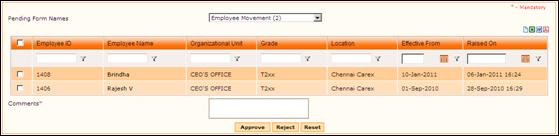
On selecting the form name, the list of employee movements that are waiting for approval will be shown as below:
Figure 2‑7 Forms Pending for Approval
Employee Movement can be approved either by directly selecting the checkbox and clicking [Approve] or by viewing details and then approving. To view details of the Employee Movement, click a record. The movement details will be displayed as shown here:





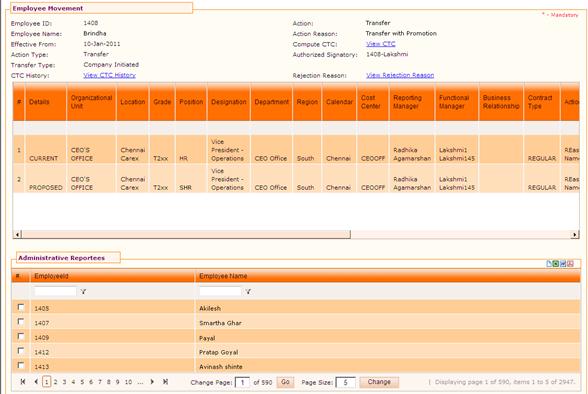





Figure 2‑8 Employee Movement Details
If the employee has functional and administrative reportees, they will be shown in the form. The approver can re-assign these reportees to a new Reporting/Functional Manager.
How to reassign Administrative Functional Reportees
Select employees who need to be reassigned to a new Reporting Manager. On selecting the check box, the ‘New Functional Reporting To’ field will be enabled.
Enter ‘@@’ in the New Functional Reporting to field, which populates list of available employees in a drop down field, as shown here:
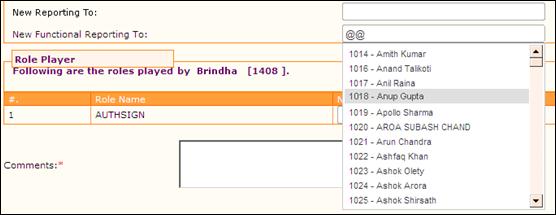
You can also enter Employee ID or Name to filter the search. For example, in the screenshot given below, the Employee Name has been entered, and hence the drop down is showing records based on the entered employee name.
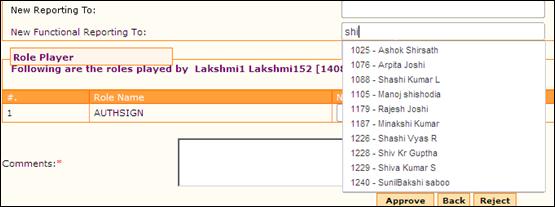
Select an employee to be the new Functional Reporting to.
Similarly, if the employee is a role player, then, the roles handled by him/her will be shown in this form. The approver can reassign the roles to a new Role Player.
How to reassign Role Player
Enter ‘@@’ in the Role player section, and choose new role player for each role.
Note: If the employee doesn’t have administrative/functional reportees then these sections will not be shown in this form. If the employee doesn’t handle any roles, then the Role player section will not be shown in this form.
Enter Comments and click [Approve] to approve the Movement.
Click [Reject] to reject the Movement.