Salary Hold
Why should I use this form?
Imagine this scenario: Employee has given notification to resign in next two months. For those two month’s salary has to be paid through settlement, but the statutory returns like PF, ESI, IT, has to be computed. If you have the question, how? We have the answer. Read on,
The master minds of Adrenalin have come up with the easy to use option of SALARY HOLD.
Employee can be marked as Salary hold once. The salary will be processed like active employee, but will not be reflected in bank transfer report. But, the details will be reflected in all the statutory reports. The salary will be on hold for future months also, till the salary hold flag is removed.
The hold salary can be released either through settlement or through salary hold release option or outside payroll.
What are the Pre-requisites?
Pay group should be available.
Who can access this form?
This form shall be visible to all employees to whom the visibility is given in Product Setup ® Module Role Mapping/Module Administration.
How to navigate to this form?
Point to Payroll menu, select Salary Hold under Salary.
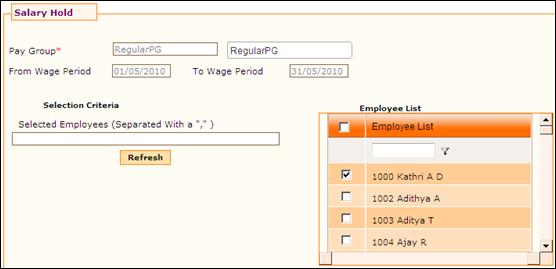
Figure 2‑34 Salary Hold
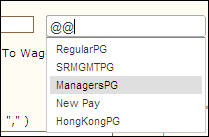
Select the Pay Group Enter ‘@@’ in the Pay Group field, which populates the list of Pay Groups in a drop down, as shown here:
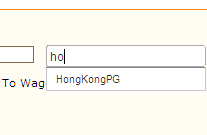
You can also enter Pay Group Name to filter the search. For example, in the screenshot given below, the Pay Group name has been entered, and hence the drop down is showing records based on the entered Pay Group.
Select required Pay Group. On selecting the Pay Group, the wage period for the selected Pay Group will be populated.
Choose the employees from the employee list or enter the employee’s name. For Bulk selection enter the employee names separated by a comma or multiple selection in the grid can be made.
Click [Submit] to save the details.
Click [Reset] to refresh the form.
Post Activity
The salary of the employee(s) selected from the Pay Group will be kept on hold.