Component
Why should I use this form?
Use this form to create a new component for Pay Group. Whenever new Pay Group is created, default components based on the selected Geographical template would be created. You can add new components/edit existing components using this form.
Option is available in this form to attach various settings for each Component.
· The earnings, deductions pay elements like BASIC, HRA, PF are termed as components in payroll.
· The component can be defined as FIXED, VARIABLE, FORMULA.
· FIXED - the amount is constant for all months, till next change in salary like Basic.
· VARIABLE - the amount is paid for a specific month like Bonus, Incentive.
· FORMULA – simple or complex formulae can be defined to compute the amount.
· Simple formula - HRA = BASIC*50/100
· Complex formula - CONVEYANCE = IF Grade = ‘G1’ then 800, if Grade = ‘G2’ then 1000.
What are the Pre-requisites?
· Pay Group should be available
· Calculation Type should be defined
Who can access this form?
This form shall be visible to all employees to whom the visibility is given in Product Setup ® Module Role Mapping/Module Administration.
How to navigate to this form?
Point to Payroll menu, select Component under Master.
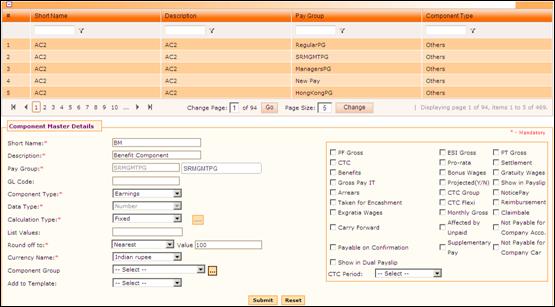
Figure 2‑8 Component Master
The grid in this form shows the list of existing Components. Use the filter section to filter records in the grid based on a condition.
Click the [+] icon on the left top of the grid to show/hide the grid.
The field guidelines are as follows.
Field Name |
Description |
Short name |
Enter the short name of the Component. |
Description |
Enter the description of the Component. The description of the component will be displayed in the reports. |
Pay Group |
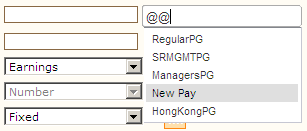
Select the Pay Group Enter ‘@@’ in the Pay Group field, which populates list of Pay Groups in a drop down, as shown here:
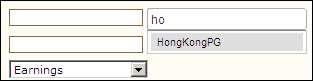
You can also enter Pay Group Name to filter the search. For example, in the screenshot given below, the Pay Group name has been entered, and hence the drop down is showing records based on the entered Pay Group.
Note: Pay Group that is mapped to the Pay Group Master and access has been defined for the logged in user will be listed in this field. |
GL Code |
Enter GL Code for the component which can be used in accounting JVs |
Component Type |
Select the component type from the dropdown list; Earnings – The defined parameters will fall under Earnings component Deductions - The defined parameters will fall under Deductions component Others - The defined parameters will fall under Others component (neither earnings nor the deduction, but used for intermediate calculation/statutory reasons only) |
Data Type |
Select the Data type from the dropdown list. This will determine how the input has to be for the particular component. Boolean - using a system of symbolic logic that uses combinations of logical operators such as "AND," "OR," and "NOT" Boolean operators to determine relationships between entities. A check box will appear which can either be switched on or off. Character – The Data type will be in the form of Alphanumeric characters A-Z and 0-9 Date – The Data type will be in the form of date format. Number – The Data type will be represented in numbers List – These values can have a user defined list of values to choose from. |
Calculation Type |
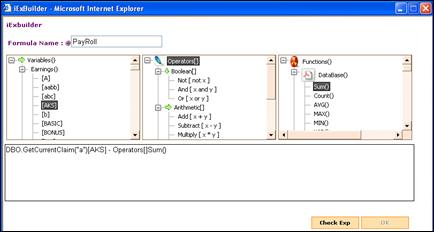
Select the type of calculation Fixed – When Fixed is chosen, the component is considered to be fixed without any change till any manual update is done (salary revision) or calculation. Formula – If Formula is chosen, a pops up screen is displayed as shown below: To define a component for which the system is expected to calculate the value, then the Calculation Type should be selected as ‘Formula’. If the Calculation Type is chosen as ‘Formula’, then click the ellipse button to view/edit the formula. The formula builder window appears, as shown here:
Click [Check Exp] to check if the defined formula is correct Click [Ok] to save the defined formula Note: [Ok] button will be enabled only if the formula is correct Variable - When Variable is chosen, the component values vary every month or every wage period. |
List Values |
Enter values that get displayed. This field will be enabled only if the Data Type is selected as ‘List’. |
Round-off to |
Select the type to round-off None – The value will not be rounded-off. Any desired value can be given in the field called ‘Value’. Nearest – the value will be rounded-off to the next nearest value. Any desired value can be given in the field called ‘Value’. Higher - the value will be rounded-off to the next highest value. Any desired value can be given in the field called ‘Value’. Eg: when value is entered as 1 then, 50.6 will be considered as 51. Lower - the value will be rounded-off to the nearest lower value. Any desired value can be given in the field called ‘Value’. Eg: when value is entered as 1 then, 50.6 will be considered as 50 only. Enter the value and enable the checkbox to carry forward the entered value Note: These values will be hardcoded. |
Currency Name |
Select the currency Name from the dropdown list. Note: Currencies that are mapped in the Currency Master will be listed in this field. |
Component Group |
The components can be grouped together and displayed in the Compensation Details (CTC) for the employee. |
Add to Template |
This is to map the component to default Template. When creating a Pay Group with the template, components mapped to the template are also created. |
Component Settings section
This section facilitates mapping attributes to components.
· PF Gross - The components marked for PFGROSS will be considered for PF calculation
· ESI Gross - The components marked for ESIGROSS will be considered for ESI calculation
· PT Gross - The components marked for PTGROSS will be considered for PT gross.
· Monthly Gross - The components marked for MONTHLY GROSS will be part of Gross earning and Gross deduction in pay slip. All the earnings components marked for Monthly gross will be part of gross earnings. All the deduction components marked for Monthly gross will be part of gross deductions.
· Gross Pay IT - The components marked for GROSS PAY IT, will be considered for income tax calculation.
· Projected (Y/N) - This will define if the parameter is to be considered as Projected or the actual value for income tax calculation.
· Show in Pay slip - Selecting this will display the component details in the Pay slip.
· Pro-rata - This will be useful when there is a need to Pro-rate the value. Eg: When an employee joins in the middle of a month, the salary has to be calculated only for the working days.
· Arrears – This refers to the components, which has to be paid to the employee as Arrears. Example: Increment/LOP.
· Affected by Unpaid - This refers to all the components which will be affected during Loss Of Pay calculation.
· Taken for Encashment - This refers to the components which will be considered during leave encashment.
· Settlement - This denotes that the components will be considered during Full and Final settlement process.
· Bonus wages - This refers to the components that are considered for bonus wages calculation that is in accordance with statutory Bonus act.
· Ex-gratia wages - This will consider the components for calculating Ex-gratia wages.
· Gratuity wages - This will consider the components for calculating Gratuity.
· Notice pay - This refers to the components that will have to be considered for Notice Pay calculation.
· Benefits – This refers to the components that have to be considered as the benefits which will be displayed in the Compensation details (CTC), but not included as part of Cost-to-Company.
· CTC – This refers to the components that have to be considered as part of CTC for an employee defined by the company.
· CTC Flexi - This refers to the components that have to be considered as part of CTC for an employee, in which the employee can distribute the components as desired.
· Reimbursement - Click this checkbox if this component has to be considered for Reimbursement. If unchecked, then this component will not be considered for Reimbursement.
· CTC Group – The sections can be defined which can have set of components in compensation details.
· Carry Forward – This refers to the option whether the rounded-off value is to be carried forward and adjusted against the next month’s value.
· Show in Dual Pay slip – The components marked in the dual currency in pay group will be displayed in the dual pay slip. The components to be shown needs to be checked for dual pay slip.
· CTC Period – This refers to the component whether the amount will be considered as annual value or monthly value when calculating the Compensation details (CTC).
Click [Submit] to save the details.
Click [Reset] to refresh the form.
Click on the Active check box if the component is valid and is still being used. Uncheck the box if the component is invalid or not in use.
To modify any existing Component, select the record from the grid. Selected record will be populated in the form. Make necessary changes and click [Submit] to save the changes.